Fish finder display problems can include a screen that does not load, distorted colors or lines, freezing, an unresponsive touchscreen, condensation, delamination, cracks or missing pixels. Use the symptoms below to identify the issue and determine the appropriate troubleshooting steps.
Before troubleshooting, check the screen for any installed screen protector, cover or overlay that could be causing the issue.
Jump To:
- Screen Does Not Load
- Discolored or Distorted Display
- Frozen, Erratic or Unresponsive Screen
- Condensation
- Delamination, Bubbling or Peeling
- Cracked Display
- Missing or Discolored Pixels
- Screen Hot to the Touch
- Resources
Screen Does Not Load
If you press the Power button but the screen does not load, first determine whether the issue is with the display or power supply.
- Check whether the keypad backlights are illuminated, if applicable.
- On models without backlit buttons, press the buttons and listen for response sounds.
- If there are no keypad lights or response sounds, troubleshoot the power supply.
- If the unit is powered on, press the Power button once on HELIX, SOLIX or APEX to check whether Night Mode is active.
- Shine a light on the screen. If information is visible but the screen has no backlight, this can help identify a display-related problem.
- If the unit does not appear to be receiving power, continue with Power Troubleshooting.
Discolored or Distorted Display
| Start up Screen or Incorrect Background Colors Examples |
| Display Screen Distortion or Lines Displaying |
If the fish finder powers on but displays incorrect background colors, distortion or lines, try the following:
- Complete the Power Troubleshooting steps.
- Inspect the power connector, sonar connectors, fuse, fuse holder and battery terminals for corrosion.
- If corrosion is present, clean the affected connection. Review Examples of Cable Damage for additional examples.
- Check that the fish finder is running current software. Visit Software Updates if an update is needed.
- Check the viewing angle and contrast settings. Refer to your Fish Finder Product Manual for model-specific display settings.
- Remove any LakeMaster, mapping or SD cards from the fish finder, then power the unit off and back on.
- If removing the SD card resolves the issue, use a new SD card between 4 GB and 32 GB before continuing with navigation data troubleshooting.
- If needed, review
- If the issue continues, contact Technical Support for additional options.
Frozen, Erratic or Unresponsive Screen
If the display freezes, behaves erratically or the touchscreen does not respond:
- Complete the Power Troubleshooting steps.
- Remove installed LakeMaster or SD cards.
- Power the fish finder off and back on.
- For APEX and SOLIX units running software version 4.210 and earlier, the joystick on the keypad can be used to toggle the touch screen settings. An example of the 4.210 and earlier SOLIX and APEX screen is below.
APEX and SOLIX 4.210 and Earlier (Click to Expand)
-
Press the Home or House physical button on your fish finder. Use the joystick to arrow to Settings and push the joystick in to select Settings.
-
On the left, use the joystick to select General on the left and push the joystick in.
- On the right, use the joystick to turn Touchscreen off and on.
-
- Check that the fish finder has current software and update it if necessary using Software Updates.
- If the issue continues, contact Technical Support.
Note: Water left on an APEX or SOLIX touchscreen can cause erratic touchscreen activity, particularly in direct sunlight.
Condensation
Some temporary fogging can occur because the air inside the fish finder contains moisture from natural humidity. Temperature changes can cause this moisture to become visible between the display and lens.
This is most commonly noticed during cooler conditions and should normally clear after approximately one hour of use.
To help reduce condensation:
- Store the fish finder in a protected, safe location at outside temperatures when possible.
- Allow the unit to operate and warm naturally.
- If condensation does not clear after approximately one hour of use, contact Technical Support to discuss service options.
Fish finders with glass-bonded color displays, including the referenced 800 Series and higher products, do not have a void between the display and lens where this condensation can form.
Delamination, Bubbling or Peeling
Examples of Display Screen Delamination or Bubbling
If the screen appears to be bubbling, peeling or delaminating, first inspect the surface carefully.
A damaged screen protector or overlay can resemble damage to the actual display. Check for any screen protector or overlay before determining that the screen itself is damaged.
Examples of a Damaged Screen Protector on Fish Finder
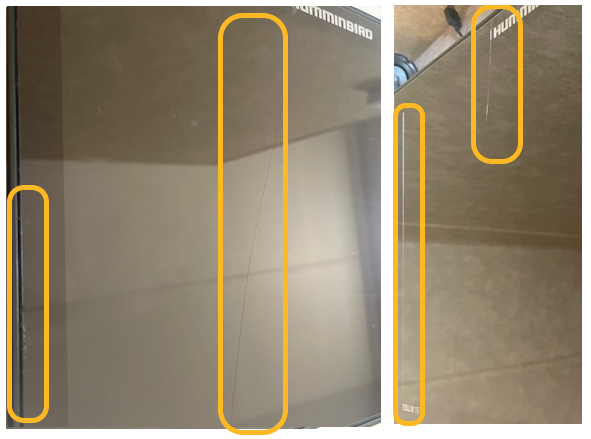
Next Steps if the Screen Is Damaged
- If the fish finder is new out of the box, check with the original place of purchase for its return or exchange policy.
- For repair options, contact Technical Support.
- Have the following information available:
- Serial number
- Proof of purchase
- Pictures showing the screen condition
Cracked Display
Example of Cracked Display
If the display is cracked:
- If the fish finder was damaged during shipping or arrived damaged when new, check with the original place of purchase for its return or exchange policy.
- Contact Technical Support for available repair options.
- Have your serial number, proof of purchase and pictures of the damaged unit available.
Missing or Discolored Pixels
Example of Discolored Pixel
If pixels appear missing, discolored or burned out:
- Check for a screen protector or cover that may be affecting the appearance of the display.
- If the fish finder is new or within its warranty period, check with the original place of purchase for its return or exchange policy or contact Technical Support for repair options.
- If the fish finder is outside its warranty period, burned-out pixels can occur and may not affect the unit's overall performance. Contact Technical Support if you would like to review available repair options and costs.
Screen Hot to the Touch
The housing and screen can become very warm or hot during normal operation, particularly in hot conditions. According to the supplied troubleshooting guidance, this alone does not indicate a problem.
If you suspect abnormal operation:
- Complete the Power Troubleshooting steps.
- Check the software version and install an update if needed from Software Updates.
- If you continue experiencing problems, contact Technical Support.